
.
GPX Track Overlay
Generate a 3D-printable STL file from your GPX activity track (running, cycling, hiking, etc.). The track will be scaled and clipped to match Castelló de la Plana so you can add it as a colored overlay in your slicer. You can also use this tool without a miniature to generate a standalone track STL. Step-by-step guide
Loading...
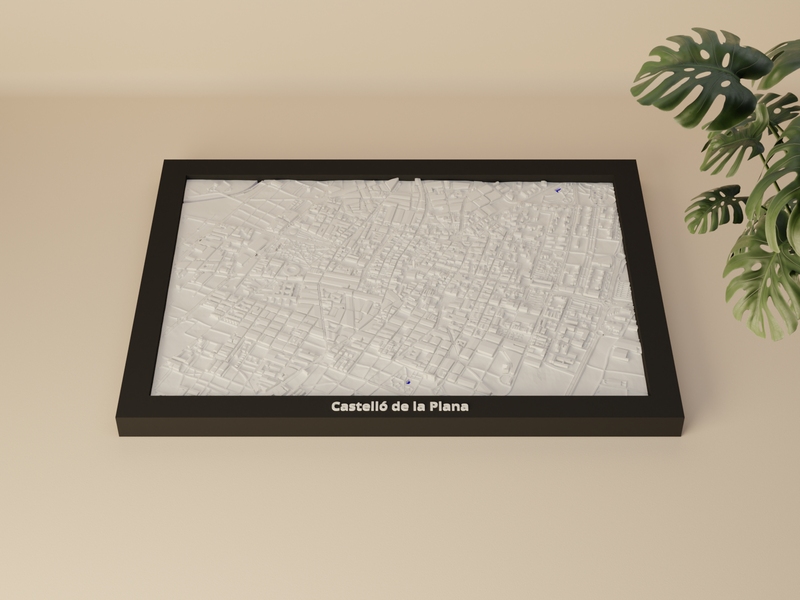
 Castelló de la Plana
- Spain
Castelló de la Plana
- Spain
GPX File
This GPX file has no elevation data. You can enrich it with terrain elevation from our DEM service.
Override the GPS/barometric elevation with terrain model data.
Elevation data added successfully.
How do I get a GPX file?
Most fitness and outdoor apps let you export activities as GPX files:
- Strava — Open an activity → ⋮ menu → Export GPX
- Garmin Connect — Open an activity → gear icon → Export to GPX
- Komoot — Open a tour → More → Download as GPX
- AllTrails — Open a trail or recording → Export → GPX
- Apple Health / Fitness — Use an app like HealthFit to export workouts as GPX
Action cameras & other devices:
- GoPro — Extract GPS telemetry from video files using GoPro Telemetry Extractor or gopro2gpx
- GPSBabel — Free tool to convert GPS logs from many devices and formats to GPX
- FPV / Racing drones — Extract flight logs from your FC (Betaflight blackbox, DJI flight records) and convert to GPX using tools like GPS Visualizer or GPSBabel
- Car / Motorsport GPS loggers — Most lap-timer and telemetry apps (e.g. RaceChrono, Harry’s LapTimer) can export sessions as GPX
Track Options
0.5
2.0 mm
5.0
0.5
4.0 mm
20.0
1×
1×
20×
Track Preview
Track Statistics
| Track Length | - |
| Points (raw) | - |
| Points (clipped) | - |
| Elevation Range | - |
| STL File Size | - |
3D Preview
Upload a GPX file and generate STL to see preview
How to Add the Track in Your Slicer
| Track size | - |
- Right-click the miniature model → Add part → Load…
- Select the downloaded track overlay STL.
- Assign a different filament / color to the track part.
- Manually align the track within the miniature until it matches the terrain.
- Right-click the miniature model → Add part.
- Load the downloaded track overlay STL.
- Assign a different filament / color to the track part.
- Manually align the track within the miniature until it matches the terrain.
- Right-click the miniature model → Add part / modifier.
- Load the downloaded track overlay STL.
- Assign a different filament / color to the track part.
- Manually align the track within the miniature until it matches the terrain.
- Right-click the miniature model → Add part.
- Load the downloaded track overlay STL.
- Assign a different filament / color to the track part.
- Manually align the track within the miniature until it matches the terrain.
- Import both the miniature and the track overlay STL as separate models.
- Select the track model and set Mesh Type to Modifier.
- Assign a different extruder / color to the track.
- Manually align the track with the miniature until it matches the terrain.
You will need to manually position the track within the miniature in your slicer.