
.
GPX Track Overlay
Generate a 3D-printable STL file from your GPX activity track (running, cycling, hiking, etc.). The track will be scaled and clipped to match Barcelona, Tibidabo so you can add it as a colored overlay in your slicer. You can also use this tool without a miniature to generate a standalone track STL. Step-by-step guide
Loading...
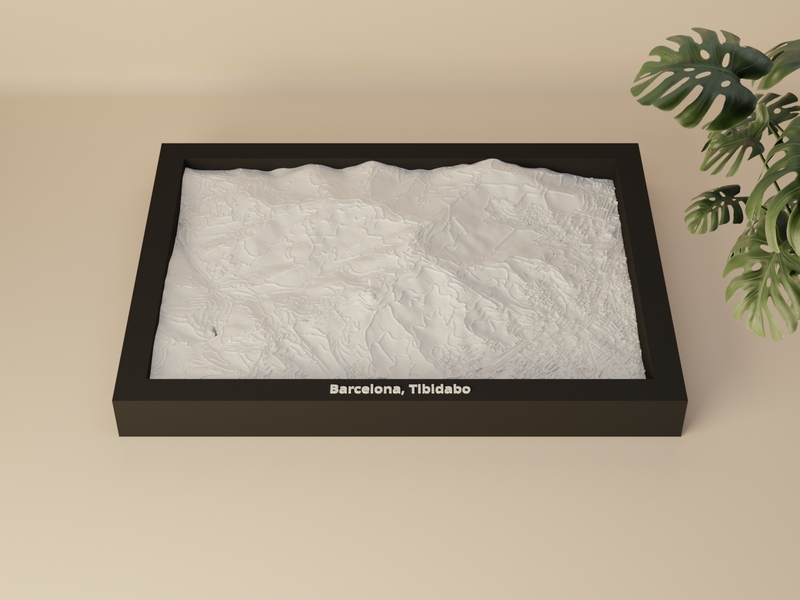
 Barcelona, Tibidabo
- Spain
Barcelona, Tibidabo
- Spain
GPX File
This GPX file has no elevation data. You can enrich it with terrain elevation from our DEM service.
Override the GPS/barometric elevation with terrain model data.
Elevation data added successfully.
How do I get a GPX file?
Most fitness and outdoor apps let you export activities as GPX files:
- Strava — Open an activity → ⋮ menu → Export GPX
- Garmin Connect — Open an activity → gear icon → Export to GPX
- Komoot — Open a tour → More → Download as GPX
- AllTrails — Open a trail or recording → Export → GPX
- Apple Health / Fitness — Use an app like HealthFit to export workouts as GPX
Action cameras & other devices:
- GoPro — Extract GPS telemetry from video files using GoPro Telemetry Extractor or gopro2gpx
- GPSBabel — Free tool to convert GPS logs from many devices and formats to GPX
- FPV / Racing drones — Extract flight logs from your FC (Betaflight blackbox, DJI flight records) and convert to GPX using tools like GPS Visualizer or GPSBabel
- Car / Motorsport GPS loggers — Most lap-timer and telemetry apps (e.g. RaceChrono, Harry’s LapTimer) can export sessions as GPX
Track Options
0.5
2.0 mm
5.0
0.5
4.0 mm
20.0
1×
1×
20×
Track Preview
Track Statistics
| Track Length | - |
| Points (raw) | - |
| Points (clipped) | - |
| Elevation Range | - |
| STL File Size | - |
3D Preview
Upload a GPX file and generate STL to see preview
How to Add the Track in Your Slicer
| Track size | - |
- Right-click the miniature model → Add part → Load…
- Select the downloaded track overlay STL.
- Assign a different filament / color to the track part.
- Manually align the track within the miniature until it matches the terrain.
- Right-click the miniature model → Add part.
- Load the downloaded track overlay STL.
- Assign a different filament / color to the track part.
- Manually align the track within the miniature until it matches the terrain.
- Right-click the miniature model → Add part / modifier.
- Load the downloaded track overlay STL.
- Assign a different filament / color to the track part.
- Manually align the track within the miniature until it matches the terrain.
- Right-click the miniature model → Add part.
- Load the downloaded track overlay STL.
- Assign a different filament / color to the track part.
- Manually align the track within the miniature until it matches the terrain.
- Import both the miniature and the track overlay STL as separate models.
- Select the track model and set Mesh Type to Modifier.
- Assign a different extruder / color to the track.
- Manually align the track with the miniature until it matches the terrain.
You will need to manually position the track within the miniature in your slicer.